Rank Math SEO Review 2026: Is It the Best WordPress SEO Plugin? (Free vs Pro Comparison)

Is Rank Math Pro worth buying? Read our detailed 2026 Rank Math review with features, pricing and pros & cons.

If you run a WordPress website and want more traffic from Google, you need a powerful SEO plugin.

But with so many options available, the big question is:

👉 Is Rank Math better than Yoast SEO?
👉 Is Rank Math Pro worth buying in 2026?

In this detailed review, I’ll explain:

  • Rank Math features
  • Free vs Pro comparison
  • Pricing
  • Real benefits
  • Whether it’s worth your money

What is Rank Math?

Rank Math is a powerful WordPress SEO plugin that helps optimize your website for search engines like Google.

It provides:

  • On-page SEO suggestions
  • Keyword optimization
  • Schema markup
  • XML sitemaps
  • 404 monitoring
  • Redirection manager
  • AI content suggestions (Pro)

It’s currently used by 2+ million WordPress websites.


Why Rank Math is Popular in 2026

Here’s why bloggers and affiliate marketers prefer Rank Math:

Easy Setup Wizard

Beginner-friendly setup in less than 10 minutes.

Multiple Keyword Optimization (Free)

Unlike many plugins, Rank Math allows optimizing for multiple keywords in the free version.

Built-in Schema Generator

Add:

  • FAQ schema
  • Product schema
  • Article schema
  • Review schema

Without extra plugins.

Advanced Analytics Dashboard

It integrates with:

  • Google Search Console
  • Google Analytics

You can see keyword rankings inside WordPress.


Rank Math Free vs Pro (Comparison Table)

FeatureFreePro
Multiple Focus Keywords
Advanced Schema Builder
Keyword Rank Tracker
Content AI
404 Monitor
Redirection Manager
WooCommerce SEOLimitedFull

👉 If you run a serious blog or affiliate website, Pro is highly recommended.


Rank Math Pro Pricing (2026 Updated)

Rank Math Pro plans start around:

  • Pro – For bloggers
  • Business – For agencies
  • Agency – For large-scale projects

🔥 Limited-time discount available here:
👉 Get Rank Math Pro at 30% OFF:


Who Should Buy Rank Math Pro?

Rank Math Pro is ideal for:

✔ Affiliate marketers
✔ Bloggers
✔ WooCommerce store owners
✔ SEO agencies
✔ Niche website builders

If you are serious about ranking on Google and increasing traffic, Pro is worth the investment.


Real Benefits for Affiliate Bloggers

If you monetize through:

  • Hosting affiliate links
  • SaaS tools
  • Amazon products
  • Digital courses

Rank Math helps you:

  • Add review schema (increase CTR)
  • Track keyword rankings
  • Optimize product pages
  • Fix SEO errors instantly

This directly increases:
📈 Traffic
📈 CTR
📈 Affiliate revenue


Pros and Cons

✅ Pros

  • Powerful free version
  • Affordable Pro
  • Advanced schema
  • Built-in rank tracking
  • Lightweight

❌ Cons

  • Too many features for beginners
  • Some AI features cost extra credits

Final Verdict: Is Rank Math Worth It?

Yes.

If you want:

  • More traffic
  • Better rankings
  • Higher affiliate income
  • Advanced SEO tools in one plugin

👉 Rank Math Pro is absolutely worth buying in 2026.

🔥 Special Discount Link:

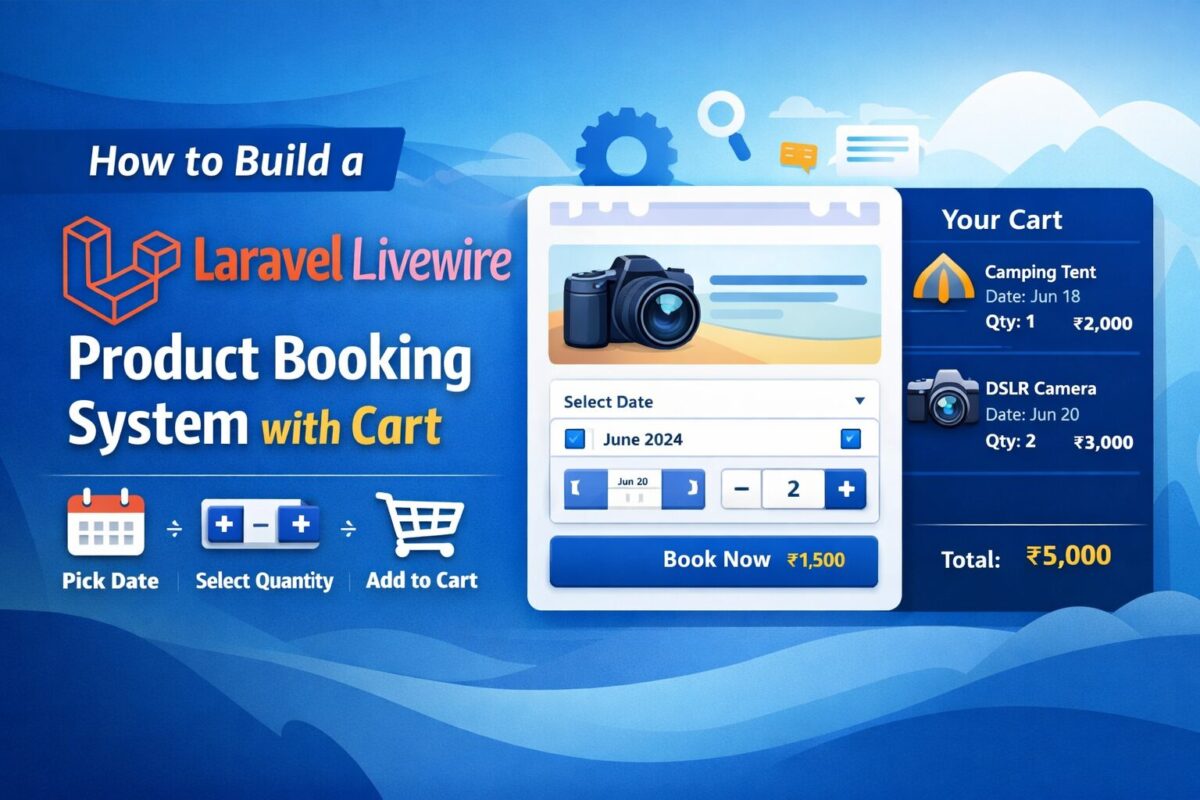
Build a Product Booking System with Cart Using Laravel Livewire

Learn how to build a complete Laravel Livewire v3 product booking system with date selection, quantity controls, cart merging, and a real-time sidebar cart. Step-by-step code included.

If you run an online store that sells products requiring date-based booking (for example rental products, events, workshops, or personalized items), then having a dynamic booking form with an integrated cart is essential. In this guide, you will learn how to build a complete Product Booking System + Cart using Laravel Livewire, where users can:

  • Select a product
  • Choose a date (mandatory)
  • Select quantity with + / – controls
  • Add multiple products to a single cart
  • Automatically merge identical items (same product + same date)
  • View the cart in a real-time sidebar

This is a fully working solution you can directly implement in your Laravel application.

Step 1: Update Your Database Structure

Create your products table:

Schema::create('products', function (Blueprint $table) {
    $table->id();
    $table->string('name');
    $table->text('description')->nullable();
    $table->decimal('price', 10, 2);
    $table->timestamps();
});

Step 2: Add Route for Product Details

Add a route to display products page, where we can display cart booking system,

Route::get('/products/{product}', function (\App\Models\Product $product) {
    return view('product-details', compact('product'));
})->name('product.details');

Step 3: Create Cart Service

Create a service app/Services/CartService.php to handle cart related actions from anywhere. This service simplifies the process to handle cart with session.

namespace App\Services;

class CartService
{
    const KEY = 'product_cart';

    public static function all()
    {
        return session()->get(self::KEY, []);
    }

    public static function add($item)
    {
        $cart = self::all();
        $found = false;

        foreach ($cart as &$cartItem) {
            if (
                $cartItem['product_id'] == $item['product_id'] &&
                $cartItem['date'] == $item['date']
            ) {
                $cartItem['quantity'] += $item['quantity'];
                $cartItem['total'] = $cartItem['quantity'] * $cartItem['price'];
                $found = true;
                break;
            }
        }

        if (!$found) {
            $cart[] = $item;
        }

        session()->put(self::KEY, $cart);
    }

    public static function clear()
    {
        session()->forget(self::KEY);
    }
}

This ensures:

  • Users can add multiple different products
  • If a product with the same date already exists → quantities merge

Step 4: Create Livewire Component – Product Booking Form

Create a product booking component using the following artisan command:

php artisan make:livewire BookProductForm

It will create 2 files for product booking,

  • Class File: app/Livewire/BookProductForm.php
  • Blade File: resources/views/livewire/book-product-form.blade.php

Livewire Component Logic

Add the below product booking logic code to the app/Livewire/BookProductForm.php file.

namespace App\Livewire;

use App\Models\Product;
use App\Services\CartService;
use Livewire\Component;

class BookProductForm extends Component
{
    public Product $product;
    public $date;
    public $quantity = 1;

    protected $rules = [
        'date' => 'required|date'
    ];

    public function incrementQty()
    {
        $this->quantity++;
    }

    public function decrementQty()
    {
        if ($this->quantity > 1) {
            $this->quantity--;
        }
    }

    public function bookNow()
    {
        $this->validate();

        CartService::add([
            'product_id' => $this->product->id,
            'name'       => $this->product->name,
            'price'      => $this->product->price,
            'date'       => $this->date,
            'quantity'   => $this->quantity,
            'total'      => $this->quantity * $this->product->price
        ]);

        $this->dispatch('cart-updated');

        $this->reset('date', 'quantity');

        session()->flash('success', 'Product added to cart!');
    }

    public function render()
    {
        return view('livewire.book-product-form');
    }
}

Blade View with Message

Add the following code to the resources/views/livewire/book-product-form.blade.php.

<div class="card p-4 shadow-sm">

    @if(session('success'))
        <div class="alert alert-success">{{ session('success') }}</div>
    @endif

    <h4 class="mb-3">Book: {{ $product->name }}</h4>

    <div class="mb-3">
        <label>Date <span class="text-danger">*</span></label>
        <input type="date" class="form-control" wire:model="date">
        @error('date') <small class="text-danger">{{ $message }}</small> @enderror
    </div>

    <div class="mb-3">
        <label>Quantity</label>
        <div class="input-group" style="width: 150px;">
            <button class="btn btn-outline-secondary" wire:click="decrementQty">-</button>
            <input type="text" class="form-control text-center" wire:model="quantity" readonly>
            <button class="btn btn-outline-secondary" wire:click="incrementQty">+</button>
        </div>
    </div>

    <button class="btn btn-primary w-100" wire:click="bookNow">
        Book Now (₹{{ number_format($product->price, 2) }})
    </button>
</div>

Step 5: Create Livewire Cart Sidebar Component

Cart booking form is ready, but on clicking add to cart button, product is added to the cart. To display this cart, create a cart sidebar livewire component using the below artisan command:

php artisan make:livewire CartSidebar

Component class and blade files will be created as follows,

  • Class File: app/Livewire/CartSidebar.php
  • Blade File: resources/views/livewire/cart-sidebar.blade.php

Livewire Component Logic

Cart sidebar should display all cart products from the cart service. Add the below code to app/Livewire/CartSidebar.php file,

namespace App\Livewire;

use App\Services\CartService;
use Livewire\Component;

class CartSidebar extends Component
{
    protected $listeners = ['cart-updated' => '$refresh'];

    public function render()
    {
        return view('livewire.cart-sidebar', [
            'cart' => CartService::all()
        ]);
    }
}

Blade view with Total Amount

The below code is for resources/views/livewire/cart-sidebar.blade.php file, to display all cart products and the total amount of the cart.

<div class="card p-3 shadow-sm" style="position: sticky; top: 10px;">

    <h5 class="mb-3">Your Cart</h5>

    @if(empty($cart))
        <p>No products in cart.</p>
    @else
        @foreach($cart as $item)
            <div class="border-bottom pb-2 mb-2">
                <strong>{{ $item['name'] }}</strong><br>
                Date: {{ $item['date'] }}<br>
                Qty: {{ $item['quantity'] }}<br>
                <span class="fw-bold">₹{{ $item['total'] }}</span>
            </div>
        @endforeach

        <div class="text-end fw-bold">
            Total: ₹{{ array_sum(array_column($cart, 'total')) }}
        </div>
    @endif
</div>

Step 6: Using Livewire Components

Finally, both of the components are ready. They are ready to be used anywhere. To test, add both these components to product details page as follows,

@extends('layouts.app')

@section('content')
<div class="container py-5">
    <div class="row">

        <div class="col-md-8">
            <h2>{{ $product->name }}</h2>
            <p>{{ $product->description }}</p>
            <p class="fw-bold">Price: ₹{{ number_format($product->price, 2) }}</p>

            <livewire:book-product-form :product="$product" />
        </div>

        <div class="col-md-4">
            <livewire:cart-sidebar />
        </div>

    </div>
</div>
@endsection

Conclusion

You now have a complete Laravel Livewire v3 product booking system with:

✔ Date-based booking
✔ Quantity controls
✔ Real-time sidebar cart
✔ Merging duplicate entries

Can a user add multiple products to the cart?

Yes. Users can add unlimited products, each with separate date and quantity options.

Does the system merge identical cart items?

Yes. If users select the same product with the same date again, quantity is merged.

Is Livewire v3 required?

Yes. This tutorial uses Livewire v3 components, events, and reactive structure.

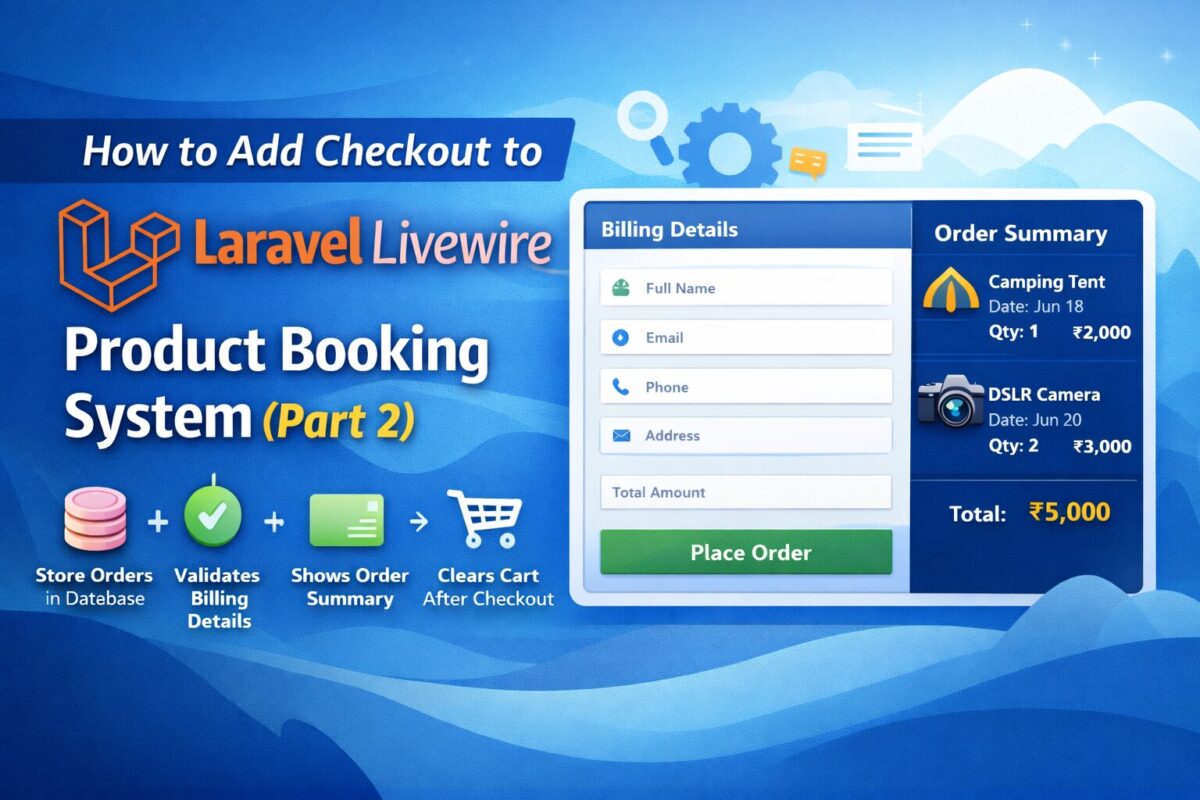
Can I add checkout or payment later?

Absolutely! This system is designed to extend into a full checkout workflow with payment gateway.

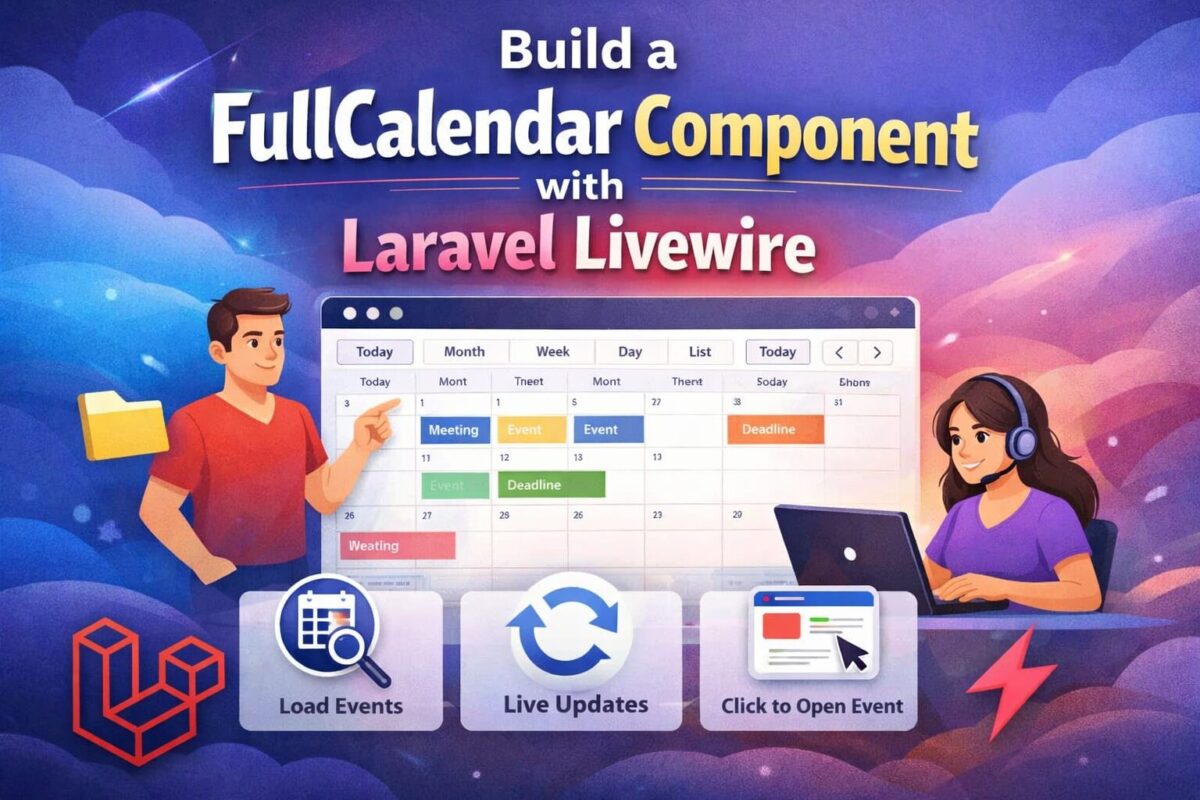
Build a Dynamic FullCalendar Component in Laravel Livewire

Learn how to build a dynamic FullCalendar component using Laravel Livewire 3. Load events based on calendar view, update without page reloads, and open event pages on click. Includes complete code, SEO tips, FAQ schema, and featured image.

If you’re building appointment systems, booking apps, task planners, or admin dashboards in Laravel, integrating a dynamic FullCalendar with Livewire 3 is one of the most powerful UI improvements you can make.

In this guide, we will create a SEO-optimized, production-ready FullCalendar component that:

  • Displays events dynamically
  • Loads events based on current calendar view (month/week/day)
  • Fetches events when navigation buttons are clicked
  • Refreshes events without breaking Livewire
  • Opens a single event page on event click

This tutorial is perfect for Livewire developers who want to build modern, reactive calendar features in Laravel.


Why Use FullCalendar With Livewire 3?

FullCalendar is one of the most flexible JavaScript calendar libraries available today. When combined with Livewire 3’s reactive power, you get:

  • Zero page reloads
  • Fast real-time interactions
  • Server-driven event handling
  • Clean API for filtering, loading & clicking events
  • Reusable UI components

Step 1: Install FullCalendar

Add CDN links in your layout:

<link href="https://cdn.jsdelivr.net/npm/fullcalendar@6.1.9/index.global.min.css" rel="stylesheet">
<script src="https://cdn.jsdelivr.net/npm/fullcalendar@6.1.9/index.global.min.js"></script>

Step 2: Create the Livewire Calendar Component

Run the following artisan command to create a livewire component,

php artisan make:livewire calendar

It will create the following files,

  • app/Livewire/Calendar.php
  • resources/views/livewire/calendar.blade.php

Step 3: Livewire Component Logic (Calendar.php)

Copy this core logic to app/Livewire/Calendar.php file.

<?php

namespace App\Livewire;

use App\Models\Event;
use Livewire\Component;

class Calendar extends Component
{
    public $events = [];

    protected $listeners = [
        'fetchEvents' => 'loadEvents',
    ];

    public function mount()
    {
        $this->loadEvents(now()->startOfMonth(), now()->endOfMonth());
    }

    public function loadEvents($start, $end)
    {
        $this->events = Event::whereDate('start_date', '<=', $end)
            ->whereDate('end_date', '>=', $start)
            ->get()
            ->map(fn($e) => [
                'id'    => $e->id,
                'title' => $e->title,
                'start' => $e->start_date,
                'end'   => $e->end_date,
                'url'   => route('event.details', ['slug' => $e->slug])
            ])
            ->toArray();

        $this->dispatch('refreshCalendar', $this->events);
    }
    
    public function render()
    {
        return view('livewire.calendar');
    }
}

This ensures all events are always pushed correctly to the frontend.


Step 4: Blade View With Event Click Redirect

<div wire:ignore x-data="calendarComponent()" x-init="initCalendar()">
    <div id="calendar"></div>
</div>

<script>
    function calendarComponent() {
        return {
            calendar: null,

            initCalendar() {
                const calendarEl = document.getElementById('calendar');

                this.calendar = new FullCalendar.Calendar(calendarEl, {
                    initialView: 'dayGridMonth',
                    selectable: true,
                    events: @json($events),
                    headerToolbar: {
                        left: 'prev,next today',
                        center: 'title',
                        right: 'dayGridMonth,dayGridWeek,timeGridDay,listWeek'
                    },

                    datesSet: (info) => {
                        // Date range changed → fetch events
                        Livewire.dispatch('fetchEvents', {
                            start: info.startStr,
                            end: info.endStr
                        });
                    },

                    eventClick(info) {
                        info.jsEvent.preventDefault();
                        if (info.event.url) {
                            window.location.href = info.event.url;
                        }
                    },
                });

                this.calendar.render();

                // Updating events when Livewire refreshes
                Livewire.on('refreshCalendar', (events) => {
                    this.calendar.refetchEvents();
                });
            }
        }
    }
</script>

This creates a perfectly working FullCalendar with:

  • Navigational event loading
  • Correct date range handling
  • Click-to-redirect event pages
  • Safe event refresh

Step 5: Create SEO-Friendly Event URLs

Route::get('/events/{event}', [EventController::class, 'show'])->name('events.show');

Now every event opens its own page, improving SEO with schema-friendly URLs.


Benefits of This Implementation

  • Lightning-fast Livewire updates
  • Works with any event table structure
  • Perfect for admin dashboards, booking systems & CRMs
  • No page reloads
  • Mobile-friendly
  • Great for SEO (event URLs help Google index your content)

FAQ Section

1. Why are my events not appearing in FullCalendar?

Because FullCalendar requires start, end, and title fields in a strict structure.
The tutorial fixes this by mapping events manually.

2. Can I open a popup instead of redirecting on event click?

Yes. You can use Bootstrap, Alpine, Filament modal, or Livewire modal.
Just tell the preferred method.

3. Does this support drag & drop?

FullCalendar supports it.
Livewire can listen to eventDrop and update your event in DB.

4. How do I load events filtered by category or user?

Inside loadEvents(), simply add:

->where('category_id', $this->selectedCategory)

5. Does this support recurring events?

Yes — FullCalendar can expand recurring event rules during load.

Livewire Event List with Day and Week Filters Using Bootstrap 5

Learn how to build a Laravel Livewire event list with today, next 7 days, and next 30 days filters using Bootstrap 5. Step-by-step tutorial.

Building a dynamic Laravel Livewire event list with date-based filters is a common requirement for dashboards, admin panels, and booking systems.

In this tutorial, you’ll learn how to create a Livewire event list with Today, Next 7 Days, and next 30 Days filters, styled using Bootstrap 5, without page reloads.

Prerequisites

Before starting, make sure you have:

  • Laravel 10+
  • Livewire installed
  • Bootstrap 5 included in your project
  • Basic knowledge of Laravel models and Blade templates

Step 1: Create Events Table

Before building the Livewire component, we need a proper database table to store events. This migration ensures date-based filtering works correctly for today, next 7 days, and next 30 days views.

Run the following artisan command to generate migration:

php artisan make:migration create_events_table

It will create xxxx_xx_xx_xxxxxx_create_events_table.php migration file inside database/migrations folder. Open the generated migration file and update it as follows:

<?php

use Illuminate\Database\Migrations\Migration;
use Illuminate\Database\Schema\Blueprint;
use Illuminate\Support\Facades\Schema;

return new class extends Migration {
    public function up(): void
    {
        Schema::create('events', function (Blueprint $table) {
            $table->id();
            $table->string('title');
            $table->text('description')->nullable();
            $table->date('event_date');
            $table->timestamps();

            // Performance optimization for date filtering
            $table->index('event_date');
        });
    }

    public function down(): void
    {
        Schema::dropIfExists('events');
    }
};

Execute the migration using:

php artisan migrate

It will create events table in your project database.

Step 2: Create the Livewire Component

Run the following artisan command:

php artisan make:livewire EventList

This will generate following 2 files:

  • app/Livewire/EventList.php
  • resources/views/livewire/event-list.blade.php

Step 3: Livewire Component Logic

Open app/Livewire/EventList.php and add the following code:

<?php

namespace App\Livewire;

use Livewire\Component;
use App\Models\Event;

class EventList extends Component
{
    public string $mode = 'month'; // month | week | day

    public function mount()
    {
        $this->mode = 'month';
    }

    public function showMonth()
    {
        $this->mode = 'month';
    }

    public function showWeek()
    {
        $this->mode = 'week';
    }

    public function showDay()
    {
        $this->mode = 'day';
    }

    public function getEventsProperty()
    {
        return match ($this->mode) {

            // Today only
            'day' => Event::whereDate('event_date', today())
                ->orderBy('event_date')
                ->get(),

            // Next 7 days (today + next 6 days)
            'week' => Event::whereDate('event_date', '>=', today())
                ->whereDate('event_date', '<=', today()->copy()->addDays(6))
                ->orderBy('event_date')
                ->get(),

            // Last 30 days (default)
            default => Event::whereDate('event_date', '<=', today()->addDays(30))
                ->orderBy('event_date')
                ->get(),
        };
    }

    public function render()
    {
        return view('livewire.event-list');
    }
}

Why We Use whereDate()

  • Prevents time-related filtering bugs
  • Works correctly for both DATE and DATETIME
  • Avoids issues where week filters accidentally show all events

Step 4: Blade View Using Bootstrap 5

Add following code to resources/views/livewire/event-list.blade.php :

<div>

    <!-- Filter Buttons -->
    <div class="btn-group mb-3" role="group">
        <button
            wire:click="showMonth"
            class="btn {{ $mode === 'month' ? 'btn-primary' : 'btn-outline-primary' }}">
            Next 30 Days
        </button>

        <button
            wire:click="showWeek"
            class="btn {{ $mode === 'week' ? 'btn-primary' : 'btn-outline-primary' }}">
            Next 7 Days
        </button>

        <button
            wire:click="showDay"
            class="btn {{ $mode === 'day' ? 'btn-primary' : 'btn-outline-primary' }}">
            Today
        </button>
    </div>

    <!-- Events List -->
    <div class="card">
        <div class="list-group list-group-flush">
            @forelse ($this->events as $event)
                <div class="list-group-item">
                    <div class="d-flex justify-content-between align-items-center">
                        <h6 class="mb-1">{{ $event->title }}</h6>
                        <small class="text-muted">
                            {{ \Carbon\Carbon::parse($event->event_date)->format('d M Y') }}
                        </small>
                    </div>

                    @if($event->description)
                        <p class="mb-0 text-muted small">
                            {{ $event->description }}
                        </p>
                    @endif
                </div>
            @empty
                <div class="list-group-item text-center text-muted py-4">
                    No events found
                </div>
            @endforelse
        </div>
    </div>

</div>

Step 5: Use the Component

To add the Livewire component, add the following code anywhere in your Blade file:

<livewire:event-list />

Final Result

  • Loads next 30 days by default
  • Shows today’s events instantly
  • Displays next 7 days events correctly
  • No page reloads
  • Clean Bootstrap UI

Conclusion

This Livewire + Bootstrap solution is perfect for dashboards, admin panels, and public event listings. It’s easy to extend with pagination, previous/next navigation, or even a calendar view.