
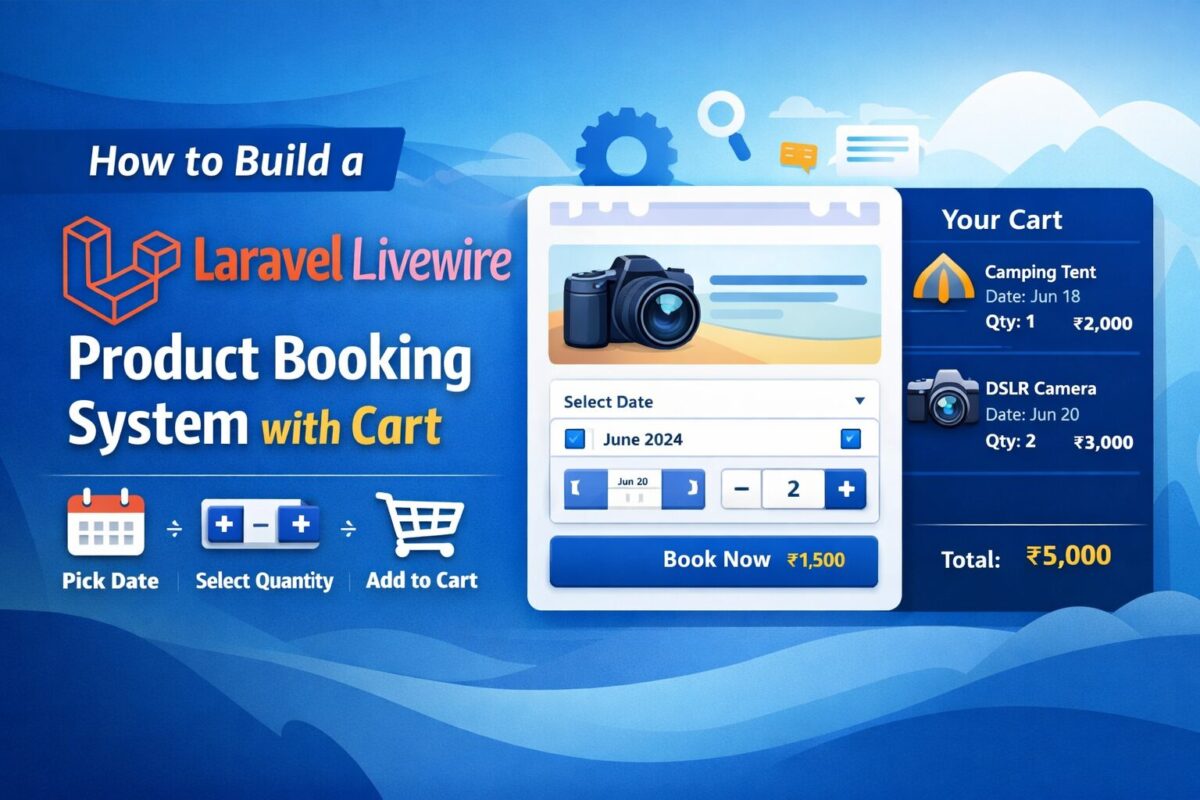
If you run an online store that sells products requiring date-based booking (for example rental products, events, workshops, or personalized items), then having a dynamic booking form with an integrated cart is essential. In this guide, you will learn how to build a complete Product Booking System + Cart using Laravel Livewire, where users can:
- Select a product
- Choose a date (mandatory)
- Select quantity with + / – controls
- Add multiple products to a single cart
- Automatically merge identical items (same product + same date)
- View the cart in a real-time sidebar
This is a fully working solution you can directly implement in your Laravel application.
Step 1: Update Your Database Structure
Create your products table:
Schema::create('products', function (Blueprint $table) {
    $table->id();
    $table->string('name');
    $table->text('description')->nullable();
    $table->decimal('price', 10, 2);
    $table->timestamps();
});
Step 2: Add Route for Product Details
Add a route to display products page, where we can display cart booking system,
Route::get('/products/{product}', function (\App\Models\Product $product) {
    return view('product-details', compact('product'));
})->name('product.details');
Step 3: Create Cart Service
Create a service app/Services/CartService.php to handle cart related actions from anywhere. This service simplifies the process to handle cart with session.
namespace App\Services;

class CartService
{
    const KEY = 'product_cart';

    public static function all()
    {
        return session()->get(self::KEY, []);
    }

    public static function add($item)
    {
        $cart = self::all();
        $found = false;

        foreach ($cart as &$cartItem) {
            if (
                $cartItem['product_id'] == $item['product_id'] &&
                $cartItem['date'] == $item['date']
            ) {
                $cartItem['quantity'] += $item['quantity'];
                $cartItem['total'] = $cartItem['quantity'] * $cartItem['price'];
                $found = true;
                break;
            }
        }

        if (!$found) {
            $cart[] = $item;
        }

        session()->put(self::KEY, $cart);
    }

    public static function clear()
    {
        session()->forget(self::KEY);
    }
}
This ensures:
- Users can add multiple different products
- If a product with the same date already exists → quantities merge
Step 4: Create Livewire Component – Product Booking Form
Create a product booking component using the following artisan command:
php artisan make:livewire BookProductFormIt will create 2 files for product booking,
- Class File:
app/Livewire/BookProductForm.php - Blade File:
resources/views/livewire/book-product-form.blade.php
Livewire Component Logic
Add the below product booking logic code to the app/Livewire/BookProductForm.php file.
namespace App\Livewire;

use App\Models\Product;
use App\Services\CartService;
use Livewire\Component;

class BookProductForm extends Component
{
    public Product $product;
    public $date;
    public $quantity = 1;

    protected $rules = [
        'date' => 'required|date'
    ];

    public function incrementQty()
    {
        $this->quantity++;
    }

    public function decrementQty()
    {
        if ($this->quantity > 1) {
            $this->quantity--;
        }
    }

    public function bookNow()
    {
        $this->validate();

        CartService::add([
            'product_id' => $this->product->id,
            'name'       => $this->product->name,
            'price'      => $this->product->price,
            'date'       => $this->date,
            'quantity'   => $this->quantity,
            'total'      => $this->quantity * $this->product->price
        ]);

        $this->dispatch('cart-updated');

        $this->reset('date', 'quantity');

        session()->flash('success', 'Product added to cart!');
    }

    public function render()
    {
        return view('livewire.book-product-form');
    }
}
Blade View with Message
Add the following code to the resources/views/livewire/book-product-form.blade.php.
<div class="card p-4 shadow-sm">

    @if(session('success'))
        <div class="alert alert-success">{{ session('success') }}</div>
    @endif

    <h4 class="mb-3">Book: {{ $product->name }}</h4>

    <div class="mb-3">
        <label>Date <span class="text-danger">*</span></label>
        <input type="date" class="form-control" wire:model="date">
        @error('date') <small class="text-danger">{{ $message }}</small> @enderror
    </div>

    <div class="mb-3">
        <label>Quantity</label>
        <div class="input-group" style="width: 150px;">
            <button class="btn btn-outline-secondary" wire:click="decrementQty">-</button>
            <input type="text" class="form-control text-center" wire:model="quantity" readonly>
            <button class="btn btn-outline-secondary" wire:click="incrementQty">+</button>
        </div>
    </div>

    <button class="btn btn-primary w-100" wire:click="bookNow">
        Book Now (₹{{ number_format($product->price, 2) }})
    </button>
</div>
Step 5: Create Livewire Cart Sidebar Component
Cart booking form is ready, but on clicking add to cart button, product is added to the cart. To display this cart, create a cart sidebar livewire component using the below artisan command:
php artisan make:livewire CartSidebarComponent class and blade files will be created as follows,
- Class File:
app/Livewire/CartSidebar.php - Blade File:
resources/views/livewire/cart-sidebar.blade.php
Livewire Component Logic
Cart sidebar should display all cart products from the cart service. Add the below code to app/Livewire/CartSidebar.php file,
namespace App\Livewire;

use App\Services\CartService;
use Livewire\Component;

class CartSidebar extends Component
{
    protected $listeners = ['cart-updated' => '$refresh'];

    public function render()
    {
        return view('livewire.cart-sidebar', [
            'cart' => CartService::all()
        ]);
    }
}
Blade view with Total Amount
The below code is for resources/views/livewire/cart-sidebar.blade.php file, to display all cart products and the total amount of the cart.
<div class="card p-3 shadow-sm" style="position: sticky; top: 10px;">

    <h5 class="mb-3">Your Cart</h5>

    @if(empty($cart))
        <p>No products in cart.</p>
    @else
        @foreach($cart as $item)
            <div class="border-bottom pb-2 mb-2">
                <strong>{{ $item['name'] }}</strong><br>
                Date: {{ $item['date'] }}<br>
                Qty: {{ $item['quantity'] }}<br>
                <span class="fw-bold">₹{{ $item['total'] }}</span>
            </div>
        @endforeach

        <div class="text-end fw-bold">
            Total: ₹{{ array_sum(array_column($cart, 'total')) }}
        </div>
    @endif
</div>
Step 6: Using Livewire Components
Finally, both of the components are ready. They are ready to be used anywhere. To test, add both these components to product details page as follows,
@extends('layouts.app')

@section('content')
<div class="container py-5">
    <div class="row">

        <div class="col-md-8">
            <h2>{{ $product->name }}</h2>
            <p>{{ $product->description }}</p>
            <p class="fw-bold">Price: ₹{{ number_format($product->price, 2) }}</p>

            <livewire:book-product-form :product="$product" />
        </div>

        <div class="col-md-4">
            <livewire:cart-sidebar />
        </div>

    </div>
</div>
@endsection
Conclusion
You now have a complete Laravel Livewire v3 product booking system with:
✔ Date-based booking
✔ Quantity controls
✔ Real-time sidebar cart
✔ Merging duplicate entries
Yes. Users can add unlimited products, each with separate date and quantity options.
Yes. If users select the same product with the same date again, quantity is merged.
Yes. This tutorial uses Livewire v3 components, events, and reactive structure.
Absolutely! This system is designed to extend into a full checkout workflow with payment gateway.