How to Add Laravel Livewire Checkout to Product Booking System (Part 2)

Learn how to build a Laravel Livewire checkout system for product booking cart. Step-by-step guide with database, Livewire component, and order storage.

In Part 1, we built a complete Product Booking System with Cart using Laravel Livewire, where users could:

  • Select a product
  • Choose a booking date
  • Select quantity
  • Add multiple products to cart
  • Merge identical cart entries

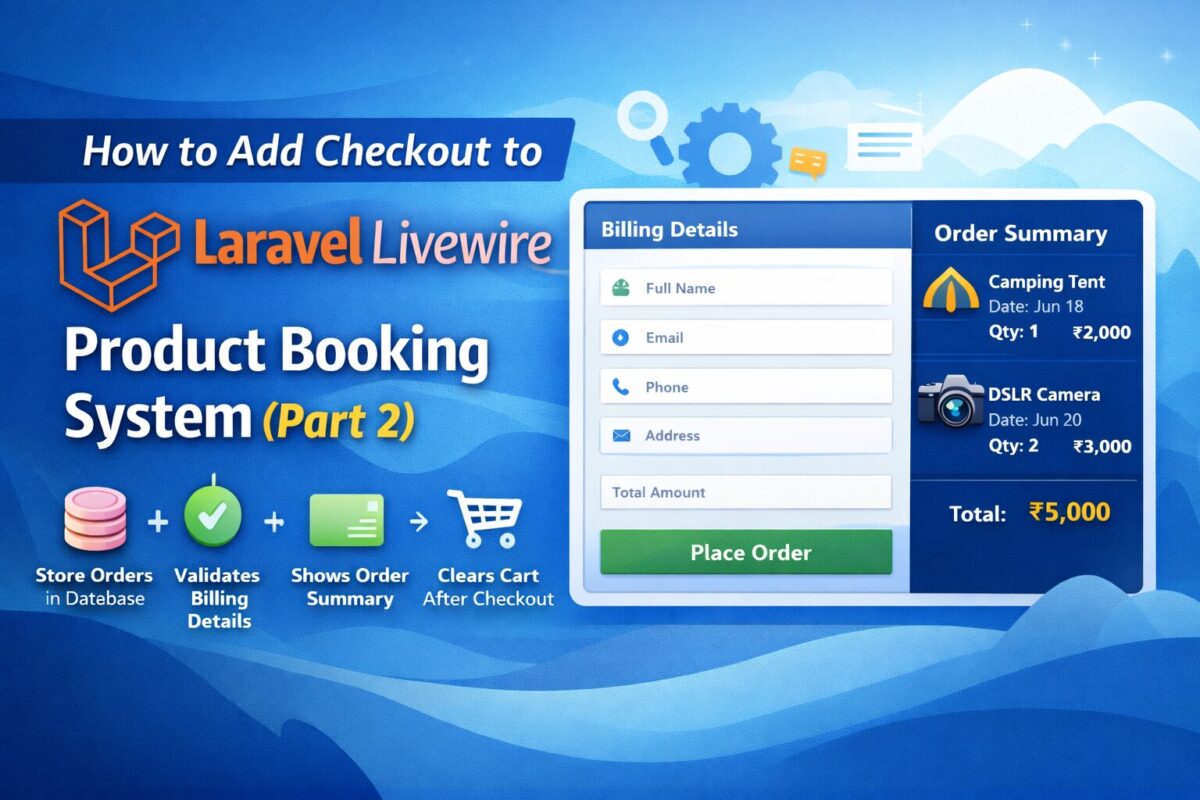
Now in Part 2, we will extend that system and add Laravel Livewire Checkout Form to make it fully working, where:

✔ User enters billing details
✔ Cart items are validated
✔ Orders are saved in database
✔ Cart clears after successful checkout
✔ Ready for payment integration

Let’s build it step-by-step.


Step 1: Create Order Tables

When a user places an order, we must store:

  • Who placed the order
  • Their contact details
  • The total order amount

Instead of saving everything in one table, we follow proper e-commerce structure and create 2 tables as follows:

  • orders: To store contact details and order related information
  • order_items: To store multiple order items for the order

This keeps your database clean and scalable.

Use the following migration command to create orders table:

php artisan make:migration create_orders_table

It will create a migration file xxxx_xx_xx_xxxxxx_create_orders_table.php inside database/migrations folder. Open this file and add the following code:

Schema::create('orders', function (Blueprint $table) {
$table->id();
$table->string('name');
$table->string('email');
$table->string('phone');
$table->text('address');
$table->decimal('total_amount', 10, 2);
$table->timestamps();
});

Similarly, use the same artisan command to create order_items table as follows,

php artisan make:migration create_order_items_table

And copy the following code to the generated migration file xxxx_xx_xx_xxxxxx_create_order_items_table.php:

Schema::create('order_items', function (Blueprint $table) {
$table->id();
$table->foreignId('order_id')->constrained()->cascadeOnDelete();
$table->foreignId('product_id');
$table->date('booking_date');
$table->integer('quantity');
$table->decimal('price', 10, 2);
$table->decimal('total', 10, 2);
$table->timestamps();
});

After both migrations, run the below migrate command to execute created migrations:

php artisan migrate

Step 2: Create Checkout Livewire Component

Create a checkout form livewire component using the following artisan command:

php artisan make:livewire CheckoutForm

It will create 2 files for product booking,

  • Class File: app/Livewire/CheckoutForm.php
  • Blade File: resources/views/livewire/checkout-form.blade.php

Livewire Component Logic

Open app/Livewire/CheckoutForm.php file and copy the following component login in it.

namespace App\Livewire;

use App\Models\Order;
use App\Models\OrderItem;
use App\Services\CartService;
use Livewire\Component;

class CheckoutForm extends Component
{
    public $name, $email, $phone, $address;

    protected $rules = [
        'name'    => 'required|string|min:3',
        'email'   => 'required|email',
        'phone'   => 'required',
        'address' => 'required|min:10',
    ];

    public function placeOrder()
    {
        $this->validate();

        $cart = CartService::all();

        if (empty($cart)) {
            session()->flash('error', 'Cart is empty!');
            return;
        }

        $total = array_sum(array_column($cart, 'total'));

        $order = Order::create([
            'name'         => $this->name,
            'email'        => $this->email,
            'phone'        => $this->phone,
            'address'      => $this->address,
            'total_amount' => $total,
        ]);

        foreach ($cart as $item) {
            OrderItem::create([
                'order_id'     => $order->id,
                'product_id'   => $item['product_id'],
                'booking_date' => $item['date'],
                'quantity'     => $item['quantity'],
                'price'        => $item['price'],
                'total'        => $item['total'],
            ]);
        }

        CartService::clear();

        return redirect()->route('order.success');
    }

    public function render()
    {
        return view('livewire.checkout-form', [
            'cart' => CartService::all()
        ]);
    }
}

Blade View with Message

Add the following code to the resources/views/livewire/checkout-form.blade.php.

<div class="row">

    <div class="col-md-7">
        <h4>Billing Details</h4>

        <input type="text" wire:model="name" placeholder="Full Name" class="form-control mb-2">
        <input type="email" wire:model="email" placeholder="Email" class="form-control mb-2">
        <input type="text" wire:model="phone" placeholder="Phone" class="form-control mb-2">
        <textarea wire:model="address" placeholder="Address" class="form-control mb-3"></textarea>

        <button wire:click="placeOrder" class="btn btn-success w-100">
            Place Order
        </button>
    </div>

    <div class="col-md-5">
        <h4>Order Summary</h4>

        @foreach($cart as $item)
            <div class="border-bottom mb-2 pb-2">
                {{ $item['name'] }} <br>
                Date: {{ $item['date'] }} <br>
                Qty: {{ $item['quantity'] }} <br>
                ₹{{ $item['total'] }}
            </div>
        @endforeach

        <h5 class="mt-3">
            Total: ₹{{ array_sum(array_column($cart, 'total')) }}
        </h5>
    </div>

</div>

It contains user details form with Place Order button to complete the order and Cart Summary with all items and total amount to be payed.

Apply CSS according to your project requirements and you can also add more fields to the checkout form.


Step 3: Add Checkout Route

Add a route to routes/web.php file as follows and point to checkout view.

Route::get('/checkout', function () {
return view('checkout');
})->name('checkout');

Route is point to checkout view. So, create resources/views/checkout.blade.php file and copy the following content to it:

@extends('layouts.app')@section('content')
<div class="container py-5">
<livewire:checkout-form />
</div>
@endsection

Checkout form livewire component is attached in above view file.


What Happens Now?

When user clicks Place Order the following process is being done inside CheckoutForm.php

  1. It validates billing data and creates order record.
  2. It retrieves cart items from session and save them to order items table.
  3. It clears the cart and redirects the user to success page.

You now have a fully working product booking checkout system in Laravel Livewire.


Optional Enhancements

To make this production-ready, you can add:

  • Integrate Stripe / Razorpay payment gateway for actual payment
  • Send email confirmation to admin as well as user
  • Generate invoice on place order or after payment complete or after mark order completed from admin panel.
  • Create order panel using filament to list all orders
  • Order status management

Build a Product Booking System with Cart Using Laravel Livewire

Learn how to build a complete Laravel Livewire v3 product booking system with date selection, quantity controls, cart merging, and a real-time sidebar cart. Step-by-step code included.

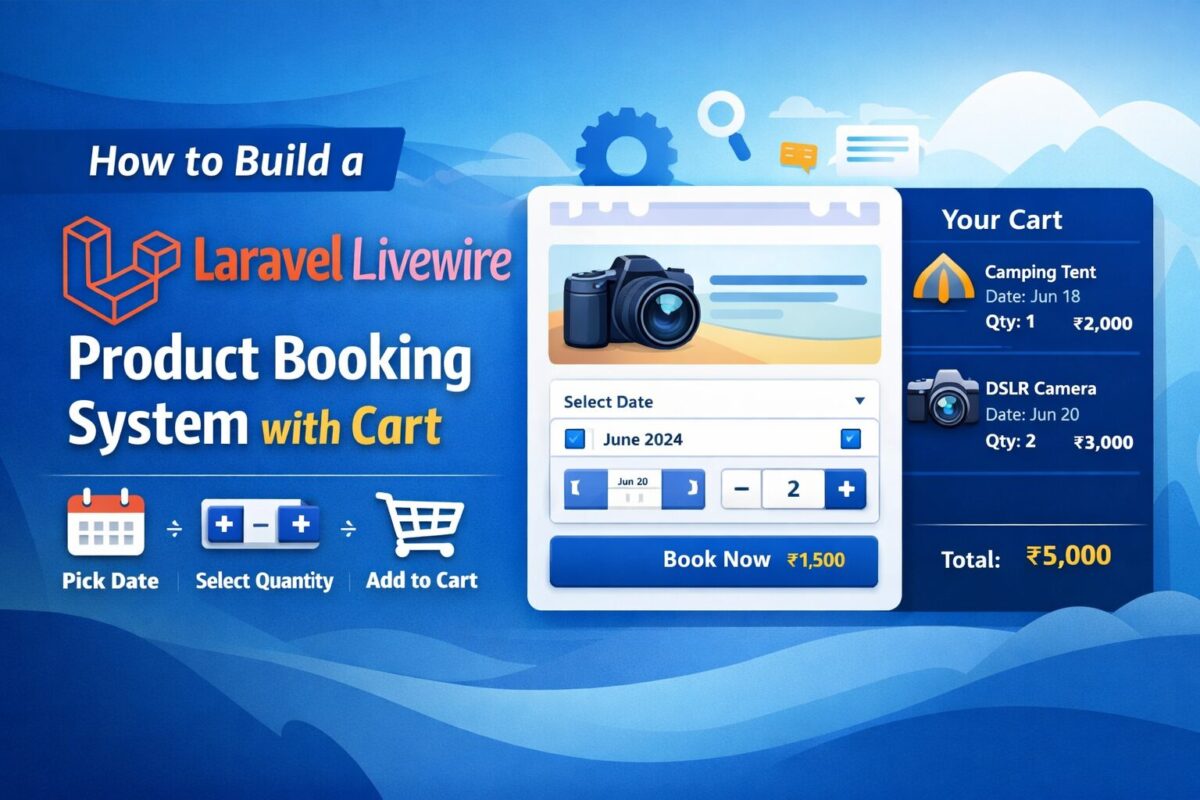
If you run an online store that sells products requiring date-based booking (for example rental products, events, workshops, or personalized items), then having a dynamic booking form with an integrated cart is essential. In this guide, you will learn how to build a complete Product Booking System + Cart using Laravel Livewire, where users can:

  • Select a product
  • Choose a date (mandatory)
  • Select quantity with + / – controls
  • Add multiple products to a single cart
  • Automatically merge identical items (same product + same date)
  • View the cart in a real-time sidebar

This is a fully working solution you can directly implement in your Laravel application.

Step 1: Update Your Database Structure

Create your products table:

Schema::create('products', function (Blueprint $table) {
    $table->id();
    $table->string('name');
    $table->text('description')->nullable();
    $table->decimal('price', 10, 2);
    $table->timestamps();
});

Step 2: Add Route for Product Details

Add a route to display products page, where we can display cart booking system,

Route::get('/products/{product}', function (\App\Models\Product $product) {
    return view('product-details', compact('product'));
})->name('product.details');

Step 3: Create Cart Service

Create a service app/Services/CartService.php to handle cart related actions from anywhere. This service simplifies the process to handle cart with session.

namespace App\Services;

class CartService
{
    const KEY = 'product_cart';

    public static function all()
    {
        return session()->get(self::KEY, []);
    }

    public static function add($item)
    {
        $cart = self::all();
        $found = false;

        foreach ($cart as &$cartItem) {
            if (
                $cartItem['product_id'] == $item['product_id'] &&
                $cartItem['date'] == $item['date']
            ) {
                $cartItem['quantity'] += $item['quantity'];
                $cartItem['total'] = $cartItem['quantity'] * $cartItem['price'];
                $found = true;
                break;
            }
        }

        if (!$found) {
            $cart[] = $item;
        }

        session()->put(self::KEY, $cart);
    }

    public static function clear()
    {
        session()->forget(self::KEY);
    }
}

This ensures:

  • Users can add multiple different products
  • If a product with the same date already exists → quantities merge

Step 4: Create Livewire Component – Product Booking Form

Create a product booking component using the following artisan command:

php artisan make:livewire BookProductForm

It will create 2 files for product booking,

  • Class File: app/Livewire/BookProductForm.php
  • Blade File: resources/views/livewire/book-product-form.blade.php

Livewire Component Logic

Add the below product booking logic code to the app/Livewire/BookProductForm.php file.

namespace App\Livewire;

use App\Models\Product;
use App\Services\CartService;
use Livewire\Component;

class BookProductForm extends Component
{
    public Product $product;
    public $date;
    public $quantity = 1;

    protected $rules = [
        'date' => 'required|date'
    ];

    public function incrementQty()
    {
        $this->quantity++;
    }

    public function decrementQty()
    {
        if ($this->quantity > 1) {
            $this->quantity--;
        }
    }

    public function bookNow()
    {
        $this->validate();

        CartService::add([
            'product_id' => $this->product->id,
            'name'       => $this->product->name,
            'price'      => $this->product->price,
            'date'       => $this->date,
            'quantity'   => $this->quantity,
            'total'      => $this->quantity * $this->product->price
        ]);

        $this->dispatch('cart-updated');

        $this->reset('date', 'quantity');

        session()->flash('success', 'Product added to cart!');
    }

    public function render()
    {
        return view('livewire.book-product-form');
    }
}

Blade View with Message

Add the following code to the resources/views/livewire/book-product-form.blade.php.

<div class="card p-4 shadow-sm">

    @if(session('success'))
        <div class="alert alert-success">{{ session('success') }}</div>
    @endif

    <h4 class="mb-3">Book: {{ $product->name }}</h4>

    <div class="mb-3">
        <label>Date <span class="text-danger">*</span></label>
        <input type="date" class="form-control" wire:model="date">
        @error('date') <small class="text-danger">{{ $message }}</small> @enderror
    </div>

    <div class="mb-3">
        <label>Quantity</label>
        <div class="input-group" style="width: 150px;">
            <button class="btn btn-outline-secondary" wire:click="decrementQty">-</button>
            <input type="text" class="form-control text-center" wire:model="quantity" readonly>
            <button class="btn btn-outline-secondary" wire:click="incrementQty">+</button>
        </div>
    </div>

    <button class="btn btn-primary w-100" wire:click="bookNow">
        Book Now (₹{{ number_format($product->price, 2) }})
    </button>
</div>

Step 5: Create Livewire Cart Sidebar Component

Cart booking form is ready, but on clicking add to cart button, product is added to the cart. To display this cart, create a cart sidebar livewire component using the below artisan command:

php artisan make:livewire CartSidebar

Component class and blade files will be created as follows,

  • Class File: app/Livewire/CartSidebar.php
  • Blade File: resources/views/livewire/cart-sidebar.blade.php

Livewire Component Logic

Cart sidebar should display all cart products from the cart service. Add the below code to app/Livewire/CartSidebar.php file,

namespace App\Livewire;

use App\Services\CartService;
use Livewire\Component;

class CartSidebar extends Component
{
    protected $listeners = ['cart-updated' => '$refresh'];

    public function render()
    {
        return view('livewire.cart-sidebar', [
            'cart' => CartService::all()
        ]);
    }
}

Blade view with Total Amount

The below code is for resources/views/livewire/cart-sidebar.blade.php file, to display all cart products and the total amount of the cart.

<div class="card p-3 shadow-sm" style="position: sticky; top: 10px;">

    <h5 class="mb-3">Your Cart</h5>

    @if(empty($cart))
        <p>No products in cart.</p>
    @else
        @foreach($cart as $item)
            <div class="border-bottom pb-2 mb-2">
                <strong>{{ $item['name'] }}</strong><br>
                Date: {{ $item['date'] }}<br>
                Qty: {{ $item['quantity'] }}<br>
                <span class="fw-bold">₹{{ $item['total'] }}</span>
            </div>
        @endforeach

        <div class="text-end fw-bold">
            Total: ₹{{ array_sum(array_column($cart, 'total')) }}
        </div>
    @endif
</div>

Step 6: Using Livewire Components

Finally, both of the components are ready. They are ready to be used anywhere. To test, add both these components to product details page as follows,

@extends('layouts.app')

@section('content')
<div class="container py-5">
    <div class="row">

        <div class="col-md-8">
            <h2>{{ $product->name }}</h2>
            <p>{{ $product->description }}</p>
            <p class="fw-bold">Price: ₹{{ number_format($product->price, 2) }}</p>

            <livewire:book-product-form :product="$product" />
        </div>

        <div class="col-md-4">
            <livewire:cart-sidebar />
        </div>

    </div>
</div>
@endsection

Conclusion

You now have a complete Laravel Livewire v3 product booking system with:

✔ Date-based booking
✔ Quantity controls
✔ Real-time sidebar cart
✔ Merging duplicate entries

Can a user add multiple products to the cart?

Yes. Users can add unlimited products, each with separate date and quantity options.

Does the system merge identical cart items?

Yes. If users select the same product with the same date again, quantity is merged.

Is Livewire v3 required?

Yes. This tutorial uses Livewire v3 components, events, and reactive structure.

Can I add checkout or payment later?

Absolutely! This system is designed to extend into a full checkout workflow with payment gateway.