
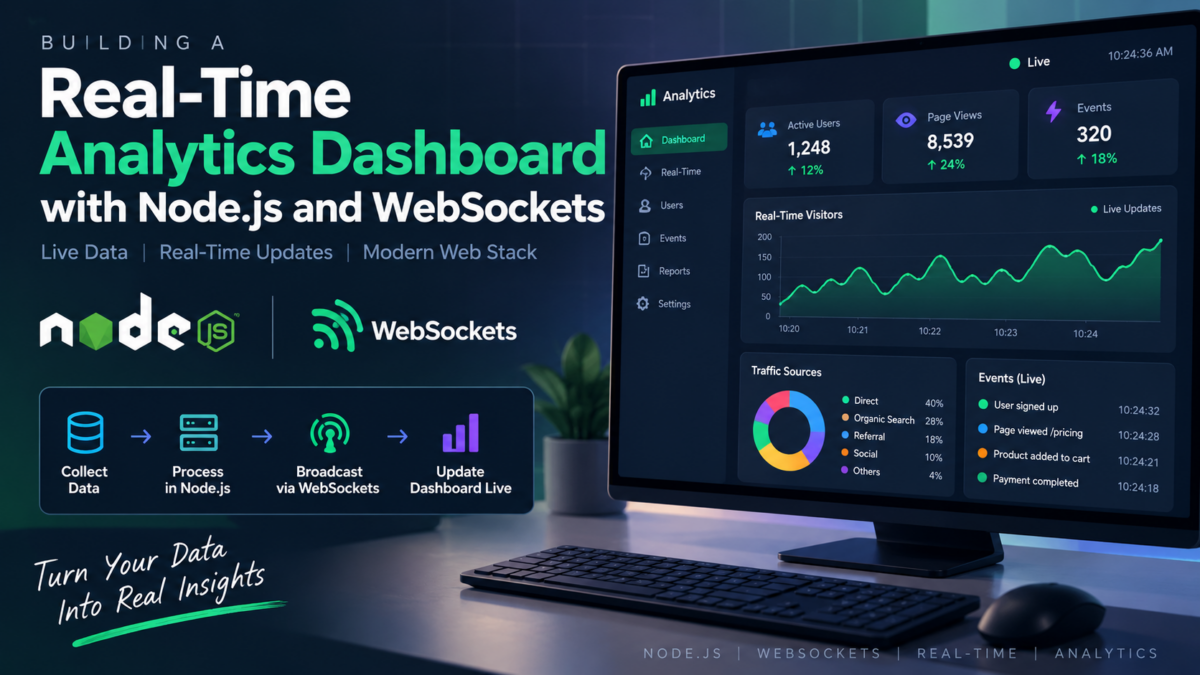
You’ve struggled with building a real-time analytics dashboard for your application. Perhaps you’ve tried using outdated libraries that don’t support modern browsers or struggled to integrate different components to achieve seamless live updates.
As a web developer, you know how crucial it is to provide users with an up-to-the-minute view of their data. But integrating real-time functionality and designing a visually appealing dashboard can be overwhelming, especially when working with multiple technologies. You’ll build a comprehensive analytics dashboard using Node.js, Socket.IO for WebSockets, Tailwind CSS, and Chart.js. By the end of this tutorial, you’ll have successfully implemented a live-updating dashboard that retrieves data from a database and visualizes it in an interactive chart.
Setting Up the Project Structure with Node.js and npm
To get started with building our real-time analytics dashboard, we’ll first set up a new project structure using Node.js and npm. Create a new directory for your project and navigate into it:
mkdir node-analytics-dashboard
cd node-analytics-dashboard
Next, initialize a new npm project by running the following command:
npm init -yThis will create a package.json file in the root of your project. Open this file and take note of the script field where you can specify scripts for your application.
Create a new directory named src to hold our application code, and alongside it, create another directory named public to store static assets like CSS and JavaScript files:
mkdir src publicCreate a new file named index.js in the root of your src directory to serve as the entry point for our application.
Your project structure should now look like this:
node-analytics-dashboard/
  src/
    index.js
  public/
  package.json
With this basic project structure set up, we can start installing required libraries and dependencies in the next section.
Installing Required Libraries for Real-Time Data Visualization
To enable real-time data visualization in our dashboard, we’ll need to install a few libraries that will handle the WebSocket connection and data retrieval. For this purpose, we’ll be using Socket.IO for establishing WebSockets and Chart.js for creating interactive visualizations.
First, let’s update the package.json file in the root of our project directory so that it points to our entry point:
{
    "name": "real-time-analytics-dashboard",
    "version": "1.0.0",
    "description": "",
    "main": "src/index.js",
    "scripts": {
        "start": "node src/index.js"
    },
    "dependencies": {}
}
Next, we’ll install the required libraries using npm (Express serves our HTTP routes and static files):
npm install express socket.io
npm install chart.js
Note that both Socket.IO and Chart.js ship with their own TypeScript type definitions, so there’s no need to install separate @types packages if you later add TypeScript support.
Now, let’s create the index.js file in the src directory to serve as our entry point:
// src/index.js
const path = require('path');
const http = require('http');
const express = require('express');

const app = express();
const server = http.createServer(app);

app.use(express.static(path.join(__dirname, '..', 'public')));

app.get('/dashboard', (req, res) => {
    res.sendFile(path.join(__dirname, '..', 'public', 'dashboard.html'));
});

const PORT = process.env.PORT || 3000;

server.listen(PORT, () => {
    console.log(`Server is listening on port ${PORT}`);
});
This sets up a basic HTTP server with Express that serves the files in public and listens on port 3000, but we’ll be configuring Socket.IO shortly to handle real-time connections. For now, let’s focus on installing our required libraries.
Configuring WebSockets with Socket.IO for Live Updates
To enable real-time updates in our dashboard, we’ll use Socket.IO, a popular library that simplifies WebSocket development. First, install it via npm by running:
npm install socket.io(If you already installed it in the previous step, you can skip this. You don’t need the separate socket.io-client package for this tutorial, because the Socket.IO server automatically serves the browser client at /socket.io/socket.io.js.)
Next, create a new file src/app.js to set up the server-side WebSocket connection:
// src/app.js
const { Server } = require('socket.io');

function createSocketServer(httpServer) {
    const io = new Server(httpServer);

    io.on('connection', (socket) => {
        console.log(`Client connected: ${socket.id}`);

        socket.on('message', (msg) => {
            // Echo the message back to the sender
            socket.emit('message', msg);
        });

        socket.on('disconnect', () => {
            console.log(`Client disconnected: ${socket.id}`);
        });
    });

    return io;
}

module.exports = { createSocketServer };
Here, we’re creating a Socket.IO server that attaches to the HTTP server listening on port 3000 and handles incoming WebSocket connections. For now, this will simply echo back any messages received from clients.
Now, let’s attach it to our server in src/index.js and add a helper that emits events when new analytics data is available:
// src/index.js (add below the line that creates `server`)
const { createSocketServer } = require('./app');

const io = createSocketServer(server);

function broadcastAnalytics(payload) {
    // Send the latest analytics data to every connected client
    io.emit('DataReceived', JSON.stringify(payload));
}
With this basic setup in place, we can now focus on integrating our dashboard with Socket.IO to receive live updates. In the next section, we’ll cover setting up a database schema for efficient data storage.
Creating a Database Schema for Efficient Data Storage
For our analytics dashboard to function smoothly, we need a database that can efficiently store and retrieve data in real-time. We’ll use MySQL as our database management system.
First, create a new file database/schema.sql with the following content:
CREATE DATABASE IF NOT EXISTS analytics_dashboard;
USE analytics_dashboard;

CREATE TABLE users (
    id INT AUTO_INCREMENT PRIMARY KEY,
    name VARCHAR(255) NOT NULL,
    email VARCHAR(255) UNIQUE NOT NULL
);

CREATE TABLE analytics_data (
    id INT AUTO_INCREMENT PRIMARY KEY,
    user_id INT NOT NULL,
    timestamp DATETIME NOT NULL DEFAULT CURRENT_TIMESTAMP,
    data JSON NOT NULL,
    FOREIGN KEY (user_id) REFERENCES users(id)
);
This schema includes two tables: users and analytics_data. The users table stores basic information about each user, while the analytics_data table stores the actual data with a foreign key referencing the corresponding user.
To create this database schema in MySQL, run the following command in your terminal:
mysql -u root -p < database/schema.sqlThis will execute the SQL file and create the database and tables according to our schema. Now we have a solid foundation for storing and retrieving real-time analytics data.
To query the database from Node.js, install the mysql2 driver:
npm install mysql2Then create a shared connection pool in src/db.js:
// src/db.js
const mysql = require('mysql2/promise');

const pool = mysql.createPool({
    host: process.env.DB_HOST || 'localhost',
    user: process.env.DB_USER || 'root',
    password: process.env.DB_PASSWORD || '',
    database: process.env.DB_NAME || 'analytics_dashboard',
    waitForConnections: true,
    connectionLimit: 10
});

module.exports = pool;
With this database schema in place, we can proceed with implementing real-time data retrieval and update logic in our application.
Building the Dashboard Layout with Tailwind CSS
With our database in place, it’s time to give our dashboard a visually appealing layout using Tailwind CSS. We’ll use this utility-first CSS framework to create a responsive design that adapts to different screen sizes.
First, install Tailwind CSS v3 (the version that uses the tailwind.config.js and PostCSS setup shown below) by running:
npm install -D tailwindcss@3 postcss autoprefixer
npx tailwindcss init -p
Update the postcss.config.js file to include the necessary plugins:
module.exports = {
  plugins: [
    require('tailwindcss'),
    require('autoprefixer')
  ]
}
Next, update the generated tailwind.config.js file with the following configuration:
module.exports = {
  content: [
    './public/**/*.html',
    './public/js/**/*.js'
  ],
  theme: {
    extend: {}
  },
  plugins: []
}
This configuration tells Tailwind CSS to scan for classes in our HTML pages and client-side scripts.
Create src/styles.css with the Tailwind directives, then compile it into public/css/app.css with the Tailwind CLI:
/* src/styles.css */
@tailwind base;
@tailwind components;
@tailwind utilities;
npx tailwindcss -i ./src/styles.css -o ./public/css/app.css --watchNow, create a new file called dashboard.html inside the public directory:
<!-- public/dashboard.html -->
<!DOCTYPE html>
<html lang="en">
<head>
    <meta charset="utf-8">
    <meta name="viewport" content="width=device-width, initial-scale=1">
    <title>Real-Time Analytics Dashboard</title>
    <link href="/css/app.css" rel="stylesheet">
</head>
<body class="antialiased">
    <!-- dashboard layout goes here -->
</body>
</html>
In the next section, we’ll implement real-time data retrieval and update logic using WebSockets.
Implementing Real-Time Data Retrieval and Update Logic
To fetch real-time data for our dashboard, we’ll use the Socket.IO library established in the previous section. We need to create a function that listens for new data from the server and updates the dashboard accordingly.
In our src/index.js file, add a /data route that emits an event with the latest data:
// src/index.js
const { getLatestData } = require('./data');

// ...

app.get('/data', async (req, res) => {
    try {
        const data = await getLatestData();
        broadcastAnalytics(data);
        res.json(data);
    } catch (err) {
        console.error(err);
        res.status(500).json({ error: 'Failed to fetch analytics data' });
    }
});
Every request to /data pushes the latest rows to all connected dashboards. In a production app you would typically call broadcastAnalytics() wherever new analytics rows are inserted (or on a timer), so clients update without anyone polling the endpoint.
Now, create the getLatestData function in src/data.js:
// src/data.js
const pool = require('./db');

async function getLatestData(limit = 20) {
    // fetch the latest rows from the analytics_data table
    const [rows] = await pool.query(
        'SELECT id, user_id, timestamp, data FROM analytics_data ORDER BY timestamp DESC LIMIT ?',
        [limit]
    );

    return rows.reverse();
}

module.exports = { getLatestData };
In the client-side JavaScript file (public/js/dashboard.js), create an event listener for DataReceived events:
// public/js/dashboard.js
const socket = io();

socket.on('connect', () => {
    console.log('Connected to server:', socket.id);
});

socket.on('DataReceived', (data) => {
    const jsonData = JSON.parse(data);
    // update dashboard with new data
});
With this implementation, our dashboard will now receive real-time updates as new data is fetched from the server. In the next section, we’ll integrate Chart.js for interactive visualizations.
We’re now ready to visualize our real-time data!
Integrating Chart.js for Interactive Visualizations
Now that we have our real-time data retrieval and update logic in place, it’s time to make our dashboard truly interactive with the help of Chart.js.
We already installed the chart.js package with npm; in the browser, the simplest way to load it is the CDN build recommended in the Chart.js documentation:
<script src="https://cdn.jsdelivr.net/npm/chart.js"></script>Next, create a new file called charts.js within the public/js directory. This will hold all our chart-related functionality.
// public/js/charts.js

function createLineChart(canvasId, labels, data) {
    const ctx = document.getElementById(canvasId);

    return new Chart(ctx, {
        type: 'line',
        data: {
            labels: labels,
            datasets: [
                {
                    label: 'Data',
                    backgroundColor: 'rgba(255, 99, 132, 0.2)',
                    borderColor: 'rgba(255, 99, 132, 1)',
                    data: data
                }
            ]
        },
        options: {
            responsive: true
        }
    });
}
In the above code snippet, we’re creating a simple line chart with the provided label and data.
To render this chart in our dashboard and keep it updated with live data, update your public/js/dashboard.js as follows:
// public/js/dashboard.js

const socket = io();
const chart = createLineChart('analyticsChart', ['Jan', 'Feb', 'Mar'], [10, 20, 30]);

socket.on('DataReceived', (data) => {
    const rows = JSON.parse(data);

    chart.data.labels = rows.map((row) => new Date(row.timestamp).toLocaleTimeString());
    chart.data.datasets[0].data = rows.map((row) => row.data.value);
    chart.update();
});
And finally, update your dashboard.html file to display the chart:
<!-- public/dashboard.html (inside <body>) -->

<div class="container mx-auto px-4">
    <div class="flex justify-center">
        <div class="w-full md:w-2/3">
            <canvas id="analyticsChart"></canvas>
        </div>
    </div>
</div>

<script src="/socket.io/socket.io.js"></script>
<script src="https://cdn.jsdelivr.net/npm/chart.js"></script>
<script src="/js/charts.js"></script>
<script src="/js/dashboard.js"></script>
That’s it! With Chart.js integrated, our dashboard now boasts interactive visualizations.
Frequently Asked Questions
What is the difference between using Socket.IO and WebSockets natively in Node.js?
Socket.IO provides a higher-level abstraction for working with WebSockets, handling connection management, and broadcasting messages to clients. Using it simplifies the process of establishing real-time communication between the server and client.
How do I troubleshoot issues with my WebSocket connection using Socket.IO?
Check the browser console for errors related to the WebSocket connection. Ensure that your server is properly configured to handle WebSockets, and verify that the client-side code is correctly establishing the connection.
Can I use Tailwind CSS with other CSS frameworks like Bootstrap or Bulma?
Yes, you can use Tailwind CSS alongside other CSS frameworks. However, be aware that using multiple frameworks may lead to conflicts in styling and layout.
How do I handle errors when retrieving data from the database for my analytics dashboard?
Use try-catch blocks to catch any errors that occur during database queries. Handle specific error types (e.g., database connection errors, query errors) separately to provide meaningful error messages and prevent application crashes.
Is it possible to use Chart.js without Socket.IO for real-time data visualization?
Yes, you can use Chart.js to create static visualizations. However, if you want to display real-time data updates, you’ll need a way to receive live data from the server, such as Socket.IO, native WebSockets, Server-Sent Events, or periodic polling, and then call chart.update() with the new data.
What are some common pitfalls to avoid when building a real-time analytics dashboard?
Be cautious of overloading your server with excessive WebSocket connections. Implement proper connection management and ensure that your database can handle high-frequency queries for real-time data retrieval.